


The Steam Deck, powered by the Linux operating system, offers remarkable versatility. It enables savvy users to develop applications such as Decky Loader, which allows for the installation of additional apps that enhance the handheld PC’s flexibility, enabling it to run a wider array of games beyond the Steam library.

Related
Steam Deck – How To Run PSP Games With EmuDeck
Here’s how to install EmuDeck and run PSP games through the Steam OS on the handheld.
With Decky Loader and another application named NonSteamLaunchers, services like Ubisoft become accessible. NonSteamLaunchers, a creation by a GitHub user known as Moraroy, also integrates installed games into both the Steam Deck’s Gaming Mode and Desktop Mode. This guide will demonstrate how to play Ubisoft Plus games like Assassin’s Creed or Star Wars Outlaws on the Steam Deck with a subscription.
Updated on April 3rd, 2024, by Michael Llewellyn: With the latest updates to Decky Loader, a Sudo password is now required for new installations. This guide has been updated to include steps for creating a Sudo password. A Sudo password will grant you the necessary permissions to install other third-party programs.
How To Install Decky Loader On The Steam Deck

Although there are various launcher operation methods, such as Ubisoft Connect on the Steam Deck, the Decky Loader method is the simplest. It eliminates the need to tinker with code and manually integrate launchers and games into the Steam Library. The following steps can be used to install the Decky Loader on the Steam Deck:
Activate Developer Mode
You should activate Developer Mode if you plan on running Non-Steam Launchers and plugins from Decky Loader. This is also useful for running emulation programs like EmuDeck, which can be installed manually or activated through Decky.
- Power up the Steam Deck.
- Press the Steam button underneath the left trackpad.
- Open the System menu.
- Under System Settings, switch Enable Developer Mode on.
- Open the Developer menu at the bottom of the left panel.
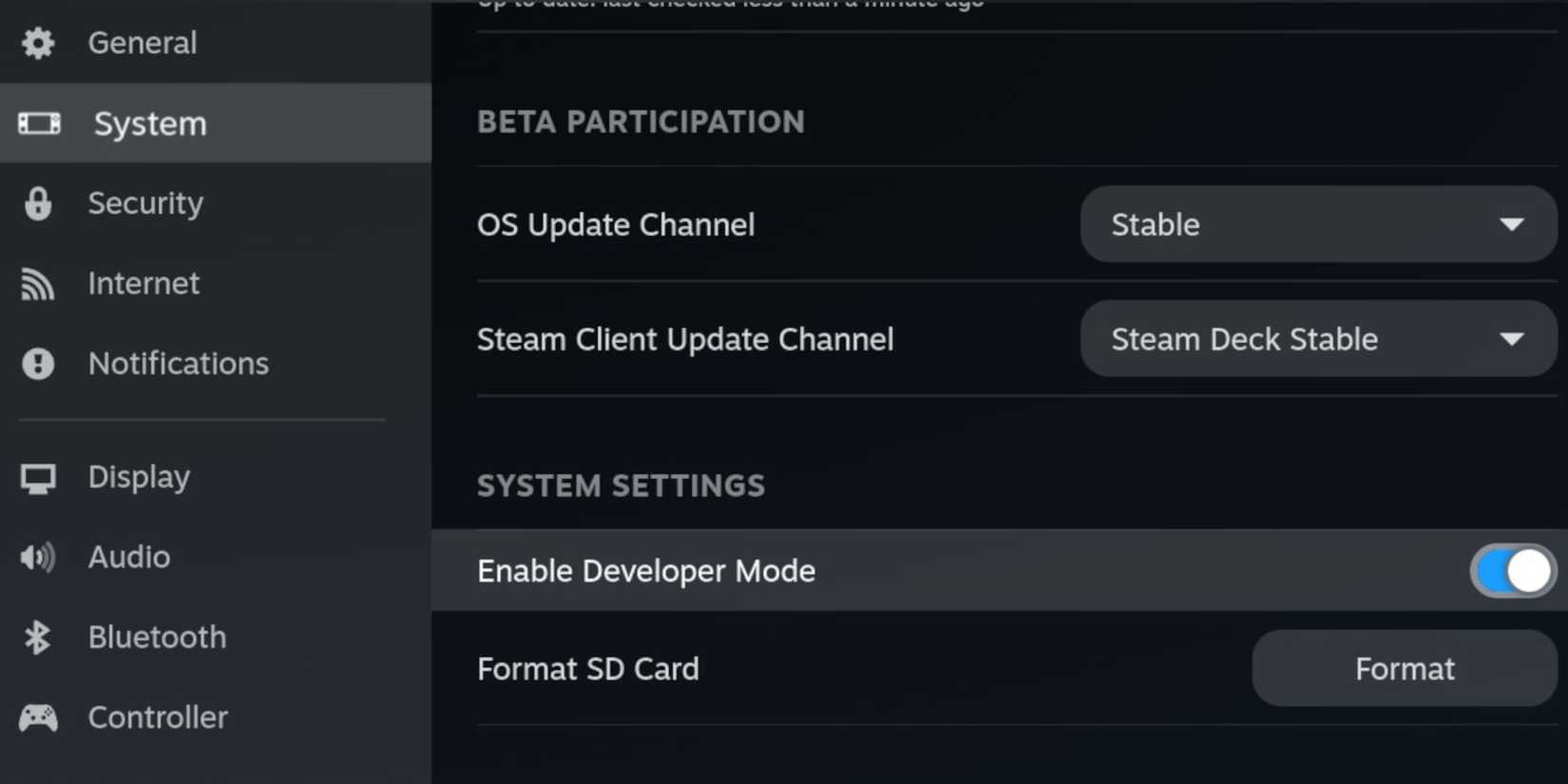
- In the Developer menu, search for the Miscellaneous section.
- Enable CEF Remote Debugging.
- Press the Steam Button again.
- Highlight Power and select Restart.
Switching off CEF Remote Debugging will make the Decky Loader plugins like Non-Steam Launchers inactive. A Steam Deck update can occasionally switch the feature off by default. If this happens, re-enable CEF Remote Debugging.
Switch To Desktop Mode
- Highlight the Power option and select Switch to Desktop Mode.
- If you have one, connect a keyboard and mouse to the Steam Deck and run it like a desktop PC.
- Use a browser, but ensure that you head to the Discover store and install Google Chrome. (Google Chrome is required to run the launchers in the Steam Deck’s Gaming Mode.)
- Navigate to the Decky Loader GitHub page and download the program.
- Click the Download icon below the Decky Loader logo, and choose the Recommended Settings.
- The installation process will now require a Sudo Password.
Create A Sudo Password
The Decky Loader program may require your sudo password. To set it up, use the following steps:
- In Desktop Mode on the Steam Deck, click the Steam Deck icon located at the bottom left of the taskbar.
- Type Konsole in the search bar and open the app.
- Type ‘passwd’.
- Then type your new memorable password in the first box and confirm it in the second.
- Run the Decky installer and type in your new password.
- Restart the installer and enter your newly created sudo password when prompted.
- When the installation is complete, restart the Steam Deck in Gaming Mode.
Make sure your Sudo Password is memorable, as resetting the password may require a full factory reset of the Steam Deck.
- After the installation, close the browser and click on Return to Gaming Mode from the Desktop.
How To Install NonSteamLaunchers For The Steam Deck

With Decky Loader installed, it’s time to switch it to Testing mode and grab the NonSteamLaunchers for Ubisoft Connect. Use the following steps to get the launcher:
- In Gaming Mode on the Steam Deck, press the Quick Access Menu button – the button with three dots located beneath the right trackpad.
- Scroll down to the new menu with the plugin icon to open Decky Loader.
- Click on the Settings cogwheel.
- In the General menu, look for the Store Channel.
- Click the drop-down menu and change it to Testing.
The Testing store in Decky Loader offers the opportunity to experiment with new programs while they are still in development.
- Back out of the settings page and open the Store by clicking the shop icon next to the settings wheel.
- Scroll down until you find the NonSteamLaunchers app and install it.
How To Fix Missing NonSteamLaunchers From Decky Store
Without explanation, NonSteamLaunchers may have been removed from the Decky Loader store. In the event this issue isn’t resolved by the developers, use the following steps to download the NonSteamLaunchers Decky Loader injector.
Only use these steps if you have already installed Decky Loader.
- Press the Steam button.
- Open the Power menu and Switch to Desktop Mode.
- When Desktop Mode has booted up, open a browser and navigate to NonSteamLaunchers Github page.
- Download the NSLplugin.desktop.
- Double-click the installer and select Execute.
- Enter your sudo password or create one.
- Select update to the latest release and click OK.
- After the installation, switch back to Gaming Mode.

Related
Steam Deck: How To Install The Amazon Games Launcher
For gamers looking to get Amazon Games running on the Steam Deck, this guide outlines all the steps that need to be followed.
How To Install The Ubisoft Launcher On The Steam Deck

With the NonSteamLauncher app installed through Decky Loader, the final steps involve integrating the Ubisoft Connect launcher to function within the Steam Deck’s gaming mode.
- Press the QAM button.
- Open Decky Loader to locate and launch the NonSteamLauncher app.
- Under Game Scanner, toggle the Auto Scan Games option on.
- Click on Game Launchers.
- Switch on Ubisoft Connect.
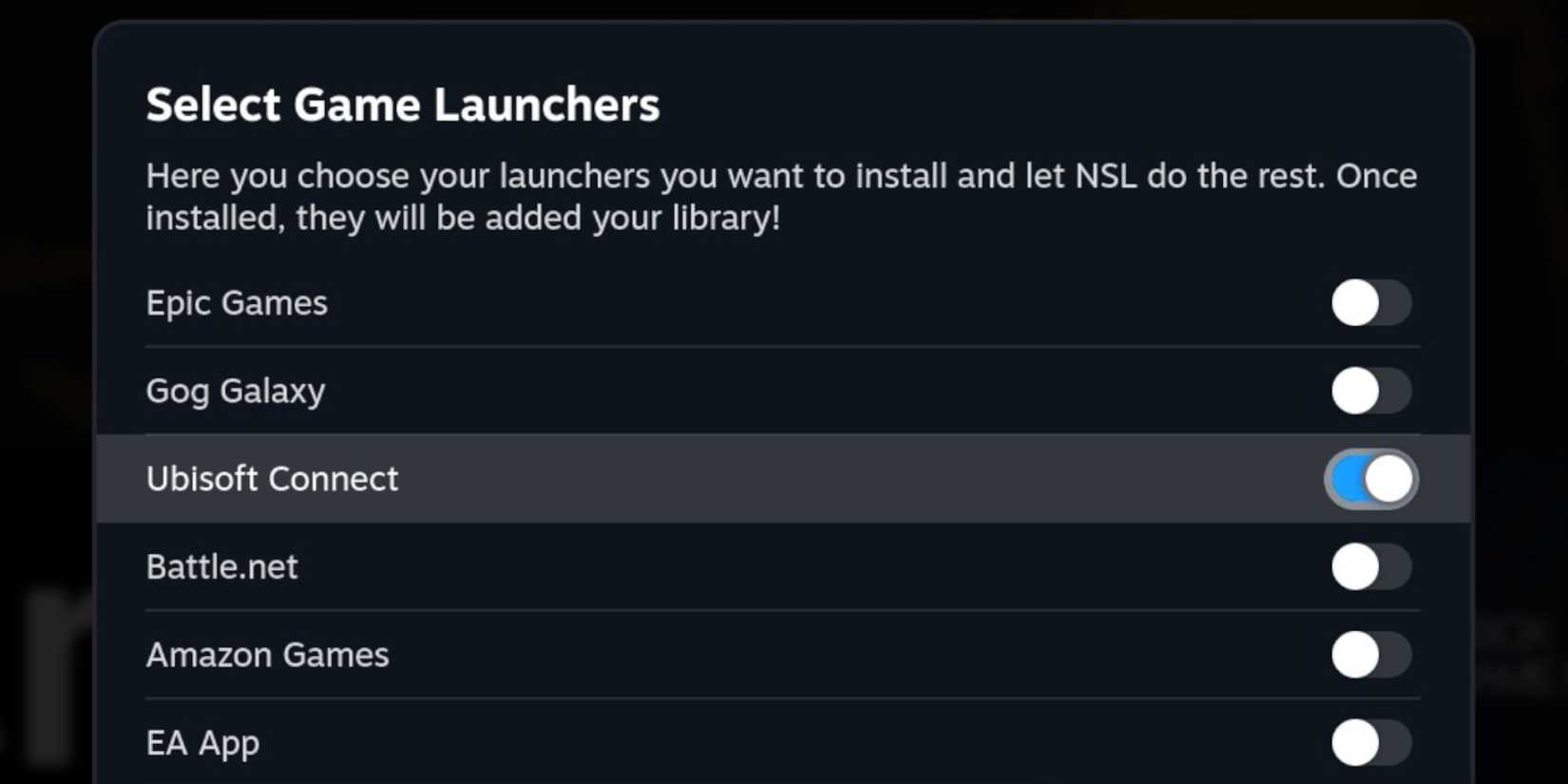
- Scroll down, toggle Separate Launcher Folders on, and click Install.
- After the program has been installed, press the Steam button.

- Open the Library and locate the Ubisoft Connect app under Non-Steam Launchers.
- Open the app and press Play.
- Sign into your Ubisoft account and install your games.
- The installed Ubisoft games will also appear in the Non-Steam library.
How To Restore Decky Loader After The Steam Deck Update
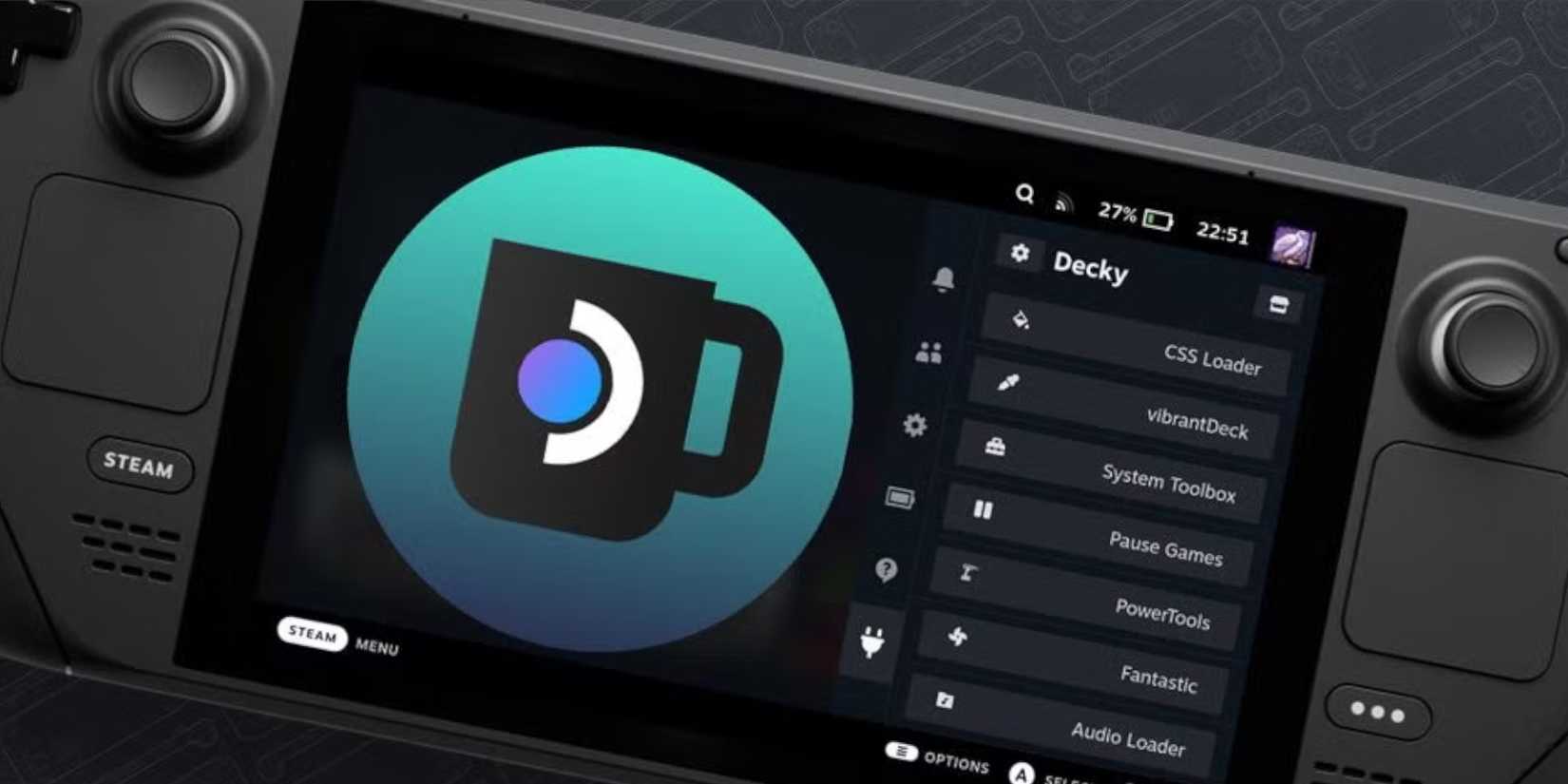
With the latest Steam Deck update breaking the Decky Loader program and removing it from the Quick Access Menu, even some of the precautions with the Developer Mode settings did not restore it. For those affected by this update, the following steps can be followed to restore Decky Loader and your plugins without losing anything:
- Press the Steam button and open the Power menu.
- Switch to Desktop Mode.
- In Desktop Mode, reopen a browser.
- Go back to the Decky Loader GitHub page and click Download.
- At the prompt, you must select Execute.
- After executing the Installer, it will ask for your pseudo password.
- Enter your pseudo password. (If you haven’t already set one up, it will take you through the steps to create a new one.)
Use a memorable password or write it down. Your pseudo password cannot be changed without resetting the Steam Deck back to its factory settings.
- After the installation, power off the Steam Deck and restart in Gaming Mode.
- In Gaming Mode, press the QAM button to access the side menu, and your Decky Loader should be back to its previous state, with your plugins intact.

Steam Deck
- Screen
-
7″ diagonal 1280 x 800px (16:10 aspect ratio) 60Hz
- CPU
-
AMD APU Zen 2 4c/8t, 2.4-3.5GHz
- Battery
-
40Whr battery. 2 – 8 hours of gameplay
- Connectivity
-
Bluetooth 5.0 and Dual-band Wi-Fi radio, 2.4GHz and 5GHz
- Audio
-
Stereo with embedded DSP for an immersive listening experience and Dual Microphone Array
- 4K Capabilities
-
Yes
- Storage
-
64 GB – 512 GB
- Ports
-
1x USB-C with DisplayPort 1.4 Alt-mode support; up to 8K @60Hz or 4K @120Hz, 1x USB 3.2 ,1x Micro SD slot, 1x 3.5 audio jack
- Dimensions
-
298mm x 117mm x 49mm
- Weight
-
Approx. 669 grams
