


Sega had a great run of gaming consoles starting with the Sega Master System and ending with the Dreamcast. While their last two machines had the unenviable task of going up against the Sony PlayStation, the Sega Saturn was still a console with excellent games Panzer Dragoon Saga that weren’t available anywhere else. However, thanks to EmuDeck, you can play your favorite Sega Saturn games on the Steam Deck, making them available on a modern system. This guide will show you how to install EmuDeck and get Sega Saturn games running on Valve’s powerful handheld device.

Related
Steam Deck: How To Launch The EA App With Decky Loader
Use Decky Loader to install the EA Games App on the Steam Deck’s gaming library.
Updated February 23, 2025, by Michael Llewellyn: While the Sega Saturn couldn’t compete with the PlayStation it was the perfect home console for fans of Sega’s library of arcade games. Furthermore, it still had a library of unique games ranging from RPGs and platformers like the Sonic the Hedgehog series. To run the retro Sega games it’s recommended you install Decky Loader. However, Decky now requires a sudo password before installing it, so this guide is updated with the steps to show you how.
Installing EmuDeck On The Steam Deck
Before installing an emulation program on the Steam Deck, you should gather the necessary items and tools to ensure a safe and smooth installation process.
Before Installation
- An A2 microSD card to install the emulator and games. Alternatively, you can use an external HDD or SSD, but the Steam Deck will lose its portability. External drives are better when using the Steam Deck with a docking station.
- A Bluetooth keyboard and mouse can make the installation less tiresome than using the Steam Deck’s onboard keyboard.
- A fully charged Steam Deck.
- Legally acquired Sega Saturn ROMs and BIOS. You can make copies of the games you own.
Switch On Developer Mode
- Press the Steam button.
- Locate and open the System menu and switch Developer Mode on.
- Now open the Developer menu and switch CEF Debugging on.
- Select the Power option.
- Then select Switch to Desktop Mode.
Download EmuDeck In Desktop Mode

- Install and open a browser like Firefox or DuckDuckGo.
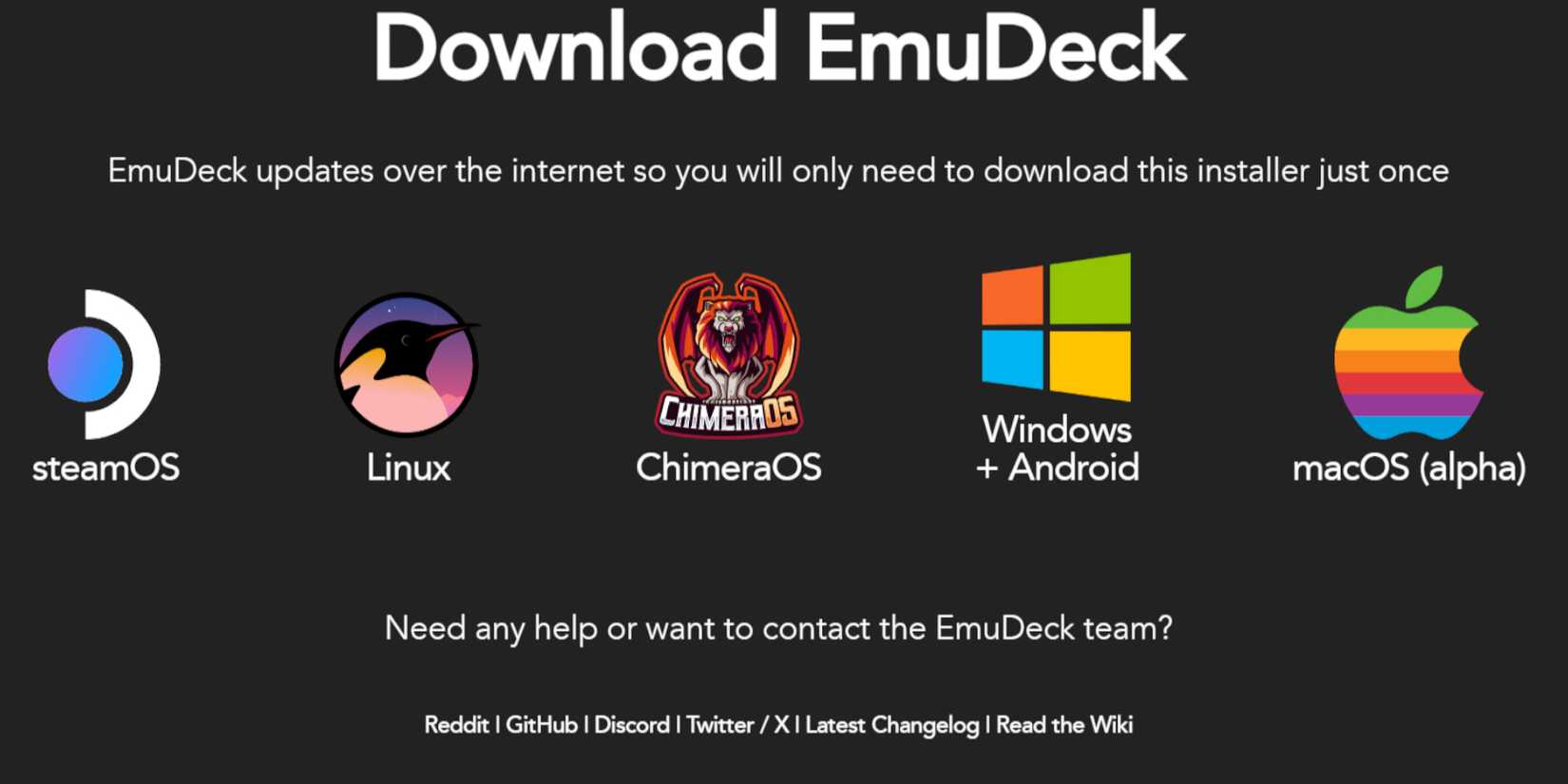
- Open the EmuDeck website and Download the EmuDeck program.
- Select the Steam OS version, and choose Custom Install.
- With the EmuDeck startup process menu select the SD Card image named Primary.
- You can install all the emulators or select RetroArch, Emulation Station, and Steam Rom Manager and click Continue.
- Switch on Auto Save.
- Skip the next few screens select Finish to finalize the installation and skip the Add Games page.
Transfer BIOS Files
Now it’s time to transfer the BIOS files for the Sega Saturn using the following steps:
The Sega Saturn BIOS files can be found using a Google search.
- Open the Dolphin File Manager.
- Click on Primary underneath Removable Devices.
- Then select Emulation.
- Open the bios folder.
- Unzip and copy your BIOS files into the bios folder.
Transfer Sega Saturn ROMS
- Reopen Primary and then Emulation.
- Now open the ROMS folder.
-
Sega Saturn File Names
-
.bin and .cue
- Look for the file called Saturn and transfer your ROMs into that folder.
Steam ROM Manager

With the Sega Saturn games in their correct folder, it’s time to add them to the Steam Deck’s library so you can play your games in Gaming Mode.
- In the EmuDeck program, open the Steam ROM Manager from the left panel.
- Click Yes to close the Steam client running in the background.
- Select Next.
- Select the two Sega Saturn emulators.
- Click on Add Games and Parse on the next screen.
- The Steam ROM Manager will now load the cover art for your Sega Saturn games.
- Then select Save to Steam.
- After the Done adding/removing entries box appears you can close the Steam ROM Manager and Return to Gaming Mode from the Desktop background.
Locate And Play Your Saturn Games On The Steam Deck
With the games added to the library, it’s time to locate and play them on your Steam Deck.
- In the Steam Deck’s Gaming Mode press the Steam button.
- Then open the Library.
- Press R1 to access the Collections tab.
- Select the Saturn window.
- Select your game and Play.
Install Decky Loader For The Steam Deck
If the settings mentioned above do not provide optimal performance on your Steam Deck, you will need to install Power Tools as recommended by the EmuDeck developers. Power Tools is an essential plugin that is installed with the Decky Loader program. To install Power Tools and Decky Loader on your Steam Deck, follow these steps:
- Connecting a keyboard and mouse simplifies internet navigation and installation.
- With the Steam Deck in Gaming Mode, press the Steam button, open the Power menu, and Switch to Desktop Mode.
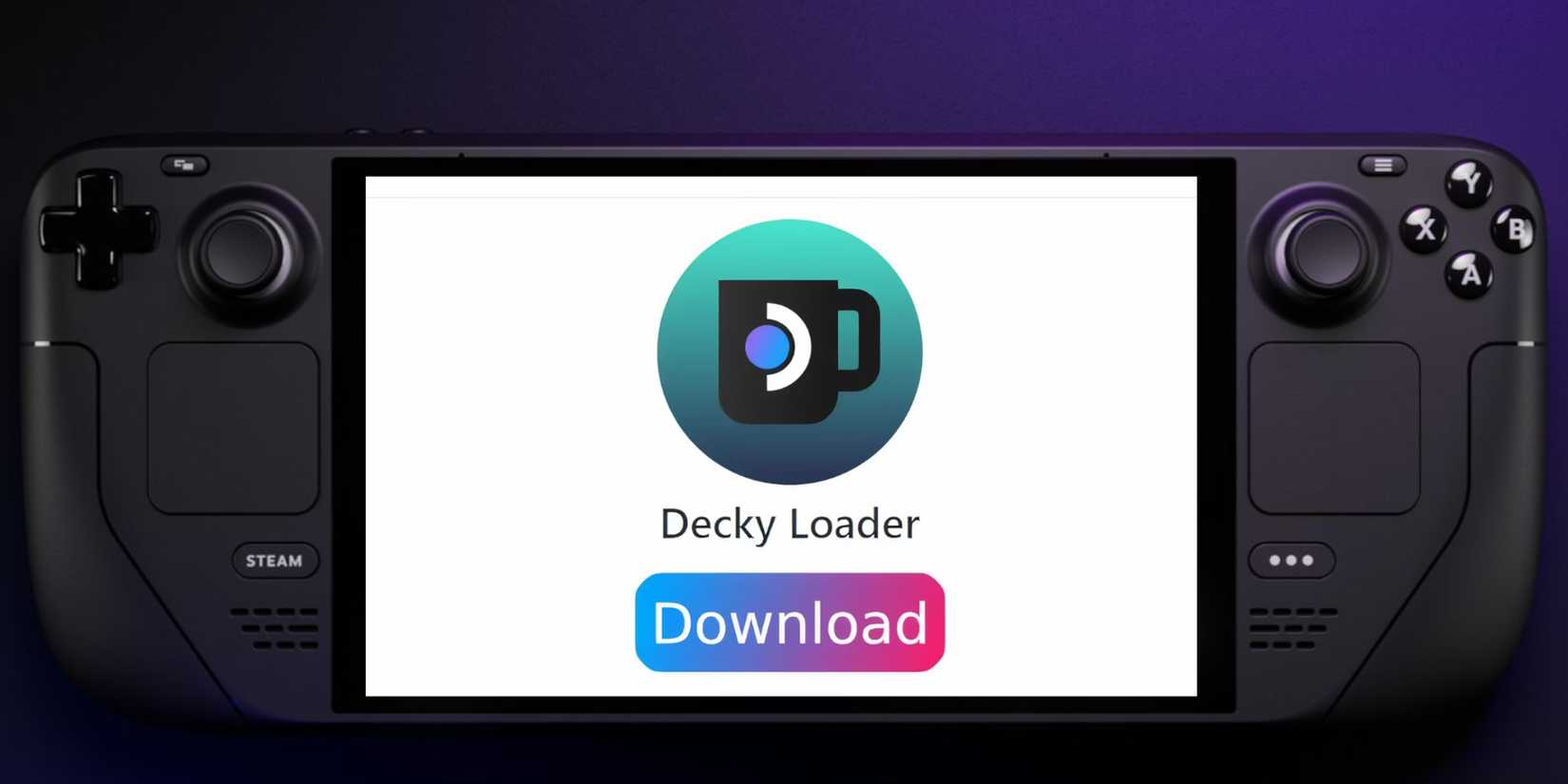
- Open a browser and navigate to the Decky Loader GitHub page.
- Click on the large Download icon to start downloading.
- Once the download is complete, double-click on the launcher and choose the Recommended Install option.
Create A Sudo Password
The Decky Loader program may require your sudo password. To set this up use the following steps:
- In Desktop Mode, click the Steam Deck logo/ icon in the bottom left corner of the taskbar.
- Type Konsole in the search bar and open the app.
- Type ‘passwd’.
- Then type your new memorable password in the first box and confirm it in the second.
- Launch the Decky installer and enter your new password.
- Relaunch the installer and enter your sudo password when prompted to begin the installation.
- When the installation is complete, restart the Steam Deck in Gaming Mode.

The next step is to install Power Tools using the Decky Loader program and adjust its settings to improve the performance of Sega Saturn games. Follow the steps below to complete the installation.
- Press the Quick Access Menu (QAM) button beneath the right trackpad.
- Open the new plugin icon at the bottom of the QAM.
- Select the store icon next to the settings cogwheel to open the Decky Store.
- Type Power Tools in the search bar or scroll down for the plugin and install it.
Power Tools Settings For Emulated Games
- Press the Steam button to open the Library.
- Find a Sega Saturn game and launch it from the Non-Steam Library or open your Sega Saturn block under the collections tab.
- With the game running, press the QAM button and open Decky Loader.
- Then open the Power Tools menu.
- Now, Turn off SMTs.
- Adjust the slider to set the Threads to 4.
- Press the QAM button and open the Performance menu represented by a battery icon.
- In Performance, Enable Advance View.
- Switch the Manual GPU Clock Control On.
- Increase GPU Clock Frequency to 1200.
- Save these settings for individual games by switching on Per Game Profile.
Fixing Decky Loader After A Steam Deck Update
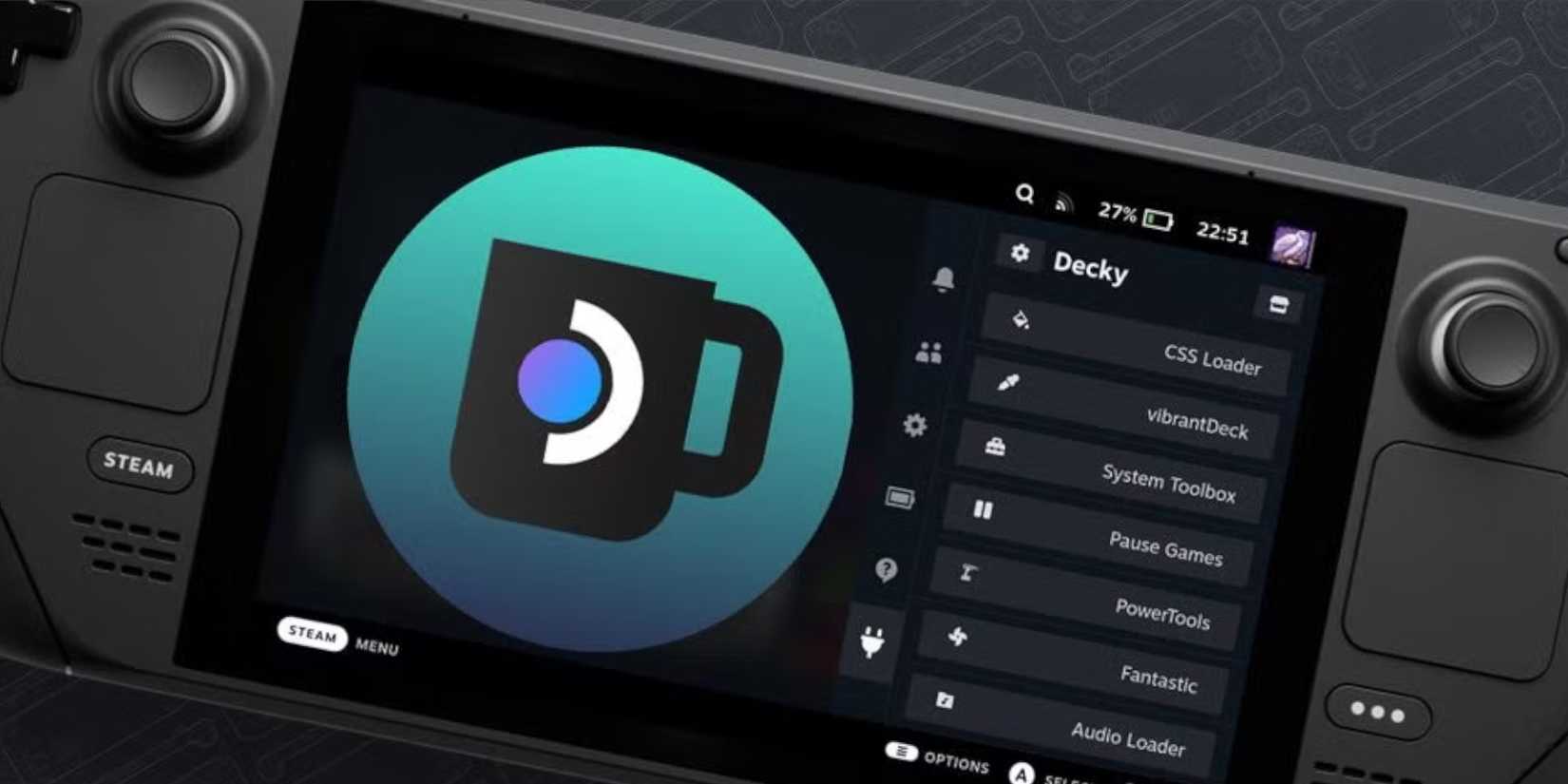
The Steam Deck has major updates that can make changes to the UI and add new features. As a result, this can break compatibility with the Decky Loader app. Use the following steps to restore your app, your personalized settings, and your plugins.
- Switch the Steam Deck back to Desktop Mode by pressing the Steam button and opening the Power Menu.
- In Desktop Mode, open a browser.
- Open the Decky Loader GitHub page and click the large Download icon.
- Only select Execute and avoid clicking Open.
- Enter your sudo password on the prompt.
- If you haven’t created a sudo password, follow the on-screen steps to establish a new one. Choose a memorable password and keep a note if you want to install more unofficial third-party apps.
- After the installation, turn off the Steam Deck and then restart it in Gaming Mode.
- Press the QAM button to restore your Decky Loader app, settings, and plugins to their previous state before the update.
That’s everything required for adding and playing your Sega Saturn games on the Steam Deck and adding them to your library next to your official Steam games.

Steam Deck
- Brand
-
Steam (Valve)
- Operating System
-
SteamOS 3 (Arch-based)
- Storage
-
64GB eMMC / 256GB NVMe SSD / 512GB NVMe SSD / 1TB NVMe SSD
- Resolution
-
1200 x 800
- Weight
-
Approx. 640 grams
- Dimensions
-
298mm x 117mm x 49mm
- Processor
-
Zen 2 4c/8t, 2.4-3.5GHz (up to 448 GFlops FP32)
